
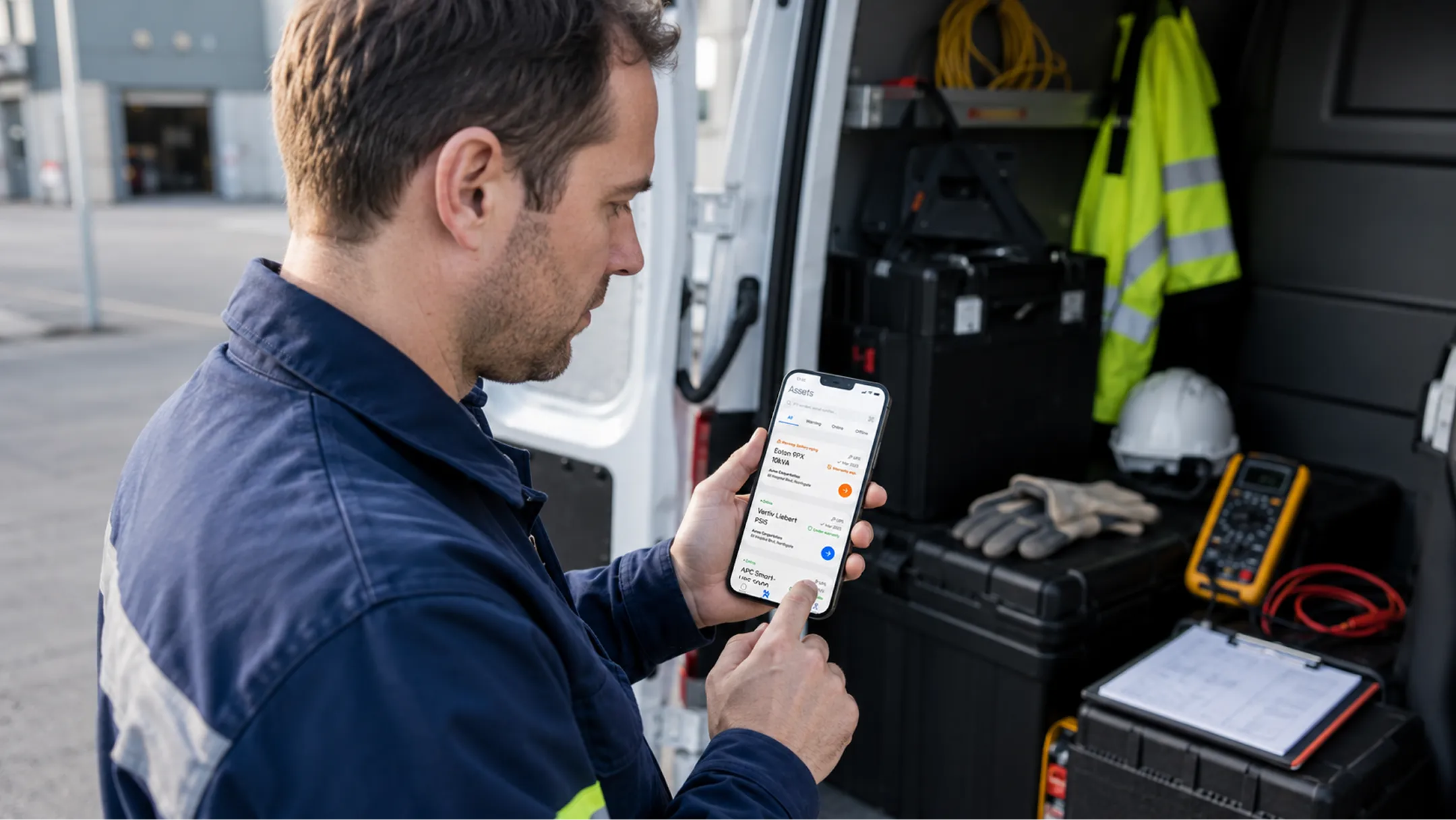
Taking a field team off pen and paper and putting the whole job in their pocket.
- Field Service Software
- Product Design
- UX/UI
- Client:
- Power Techniques Inc.
- Sector:
- Critical power infrastructure
- Scope:
- Mobile App Design and Development
- Year:
- 2025–2026
A ground-up mobile app that gives Power Techniques’ field technicians one place to see the day, work the job, and file the report — built for gloved hands, bad signal, and a schedule that never sits still.
Challenge
When the office is a clipboard on a truck dashboard.
Power Techniques keeps critical infrastructure — UPS systems, precision cooling, backup power — running for hospitals, data centers, and industrial sites across Michigan. Their field technicians are the ones actually standing in front of that equipment. Their process for tracking that work hadn't caught up.
Every job — every asset inspected, every reading taken, every part swapped — was written down by hand, on paper, in the field, then re-entered (or lost) somewhere between the site and the office. Dispatch ran on phone calls and memory. Nobody had a live view of who was where, what was overdue, or what a technician had actually found on-site until the paperwork surfaced days later, if it surfaced at all.
-
Challenge 01 Paper trail: "Information died in the truck"
Handwritten readings, illegible after a full day’s work, with no photos attached and no way to flag a problem until someone got back to a desk.
-
Challenge 02 No connectivity, no system: “The field has no signal”
Server rooms, basements, and industrial sites routinely have no cell coverage. Any system that assumes a live connection breaks the moment a technician needs it most.
-
Challenge 03 One interface, every condition: “Designed for a desk, used in a boiler room”
Technicians work with gloves on, in bright sunlight or dim mechanical rooms, mid-task. A UI that assumes careful taps and good lighting doesn’t survive contact with the field.
-
Challenge 04 Reporting as an afterthought: “Paperwork happened after the memory faded”
Service reports were written hours later, back at the office — after the details of which component was serviced, and why, had already started to blur.
Before
- Job assignments relayed by phone call, no shared schedule
- Paper service reports, re-keyed by hand back at the office
- No offline handling — any connectivity gap meant lost work
- No structured asset history per site or customer
- Reports written from memory, hours after the job ended

After
- A live daily schedule, ranked by what’s up next
- Structured, guided service reports finished on-site
- Full offline mode — nothing is lost when signal drops
- A searchable asset record for every site: status, warranty, history
- Voice-to-report AI fill, written the moment the work is done

Diagnosis
Three problems, three different fixes.
The chaos looked like a single problem — “the paperwork is a mess” — but it broke down into three genuinely different design problems, each demanding its own solution.
-
The physical problem
Field conditions rule out anything designed like a typical consumer app. Every touch target, type size, and contrast ratio had to survive gloves, glare, and a technician who’s mid-task, not sitting down to browse.
-
The continuity problem
Connectivity in the field is unreliable by nature, not by exception. The app needed to behave as if being offline were the normal state, not an edge case to patch over later.
-
The documentation problem
Reports needed to be fast enough to finish on-site, right after the work, without turning technicians into typists. That meant rethinking what a service report actually asks someone to do.
Implementation
Designed for a glove, not a fingertip.
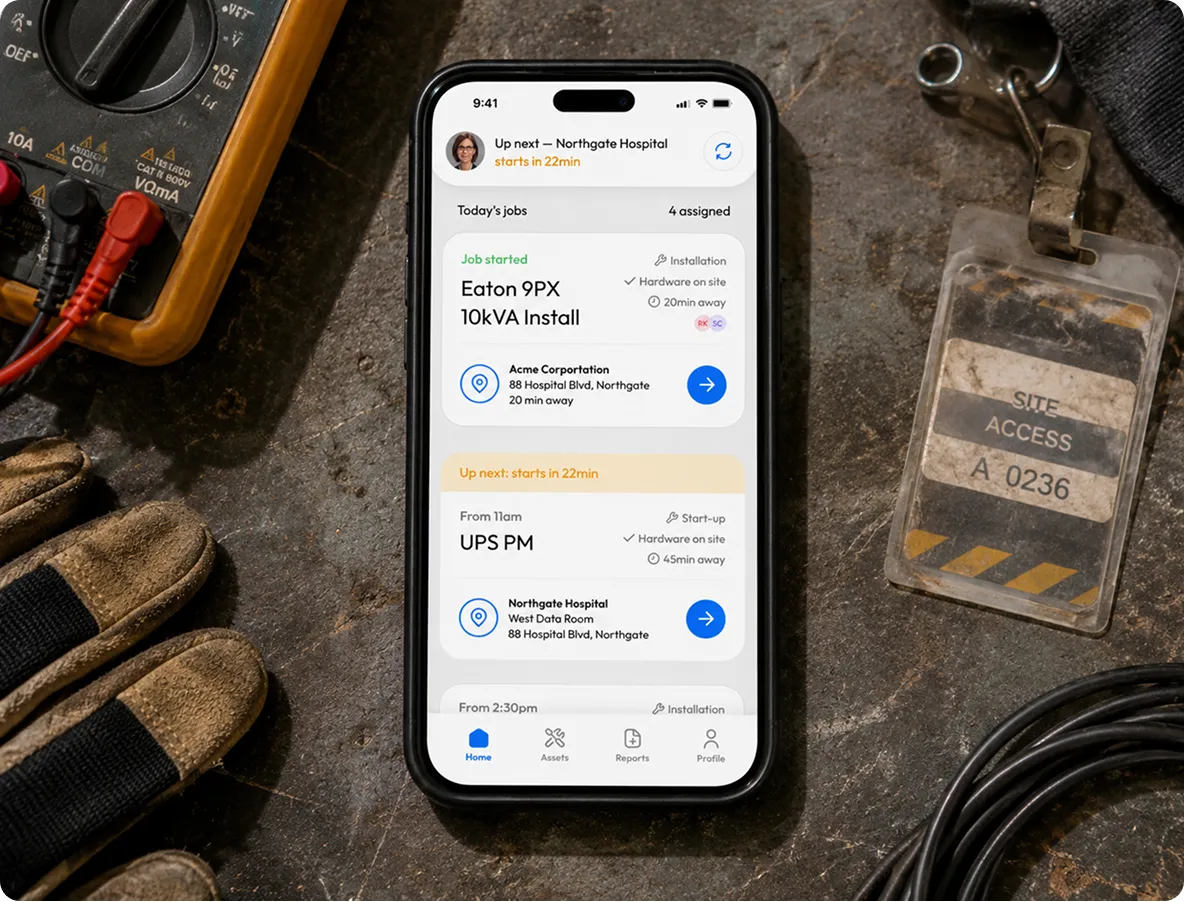
Every interactive element on the mobile app was sized and spaced for a technician working with gloves on, often outdoors, often one-handed while holding a tool or a flashlight in the other. Type had to hold up in direct sunlight and low mechanical-room light alike, so body text never drops below a size that’s readable at a glance rather than read carefully. High-contrast status color — green for online, amber for warning, red for critical — does the first pass of communication before anyone reads a word.
Key specifications: Minimum touch target 48×48px — Primary action buttons 52–56px height — Minimum actionable text 18px — Primary interface color #0170F0
Implementation
Rebuilt around the actual workday, not an ideal one.
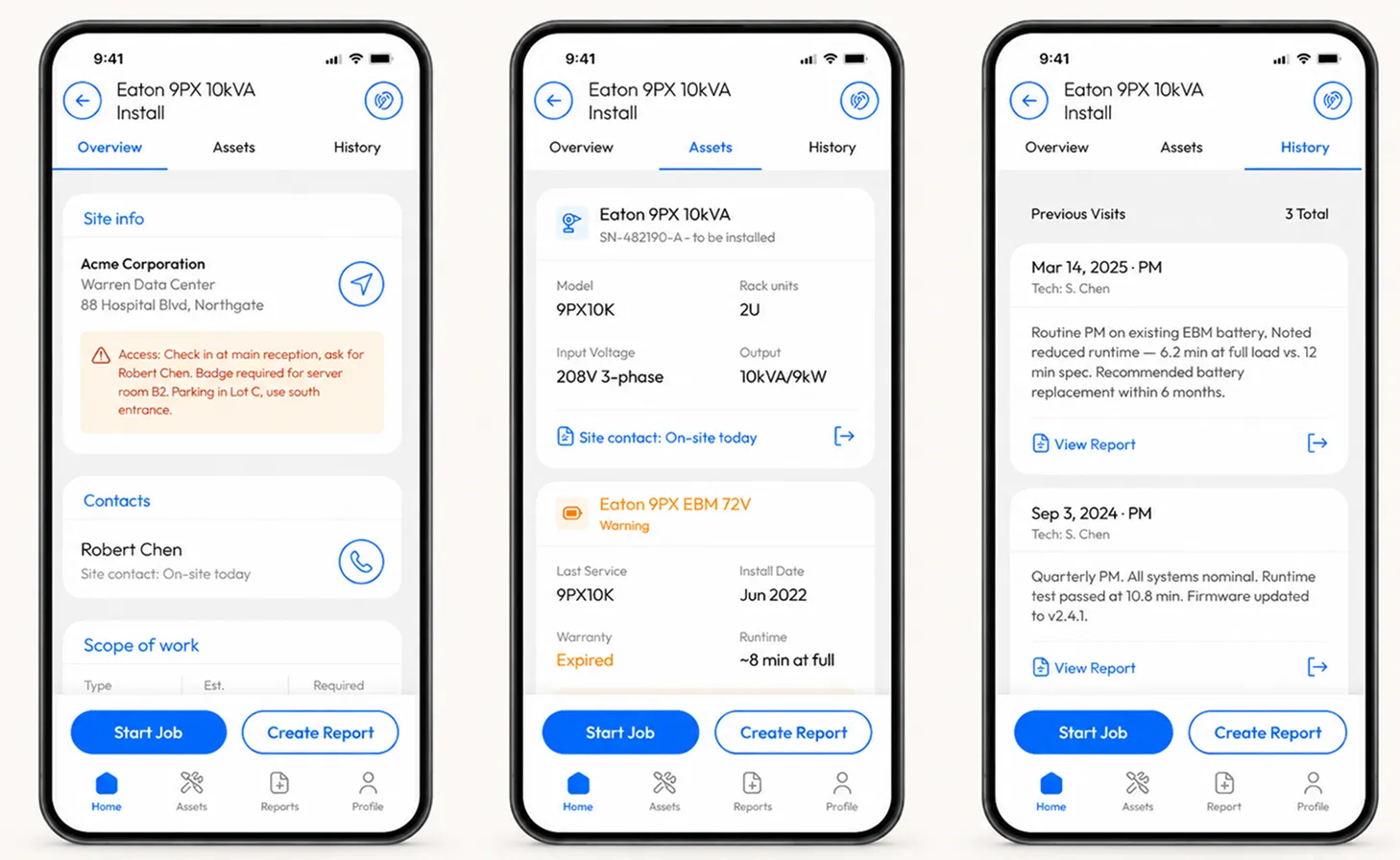
An early version of the homescreen laid the day out like a calendar, hour by hour. It looked clean — and it was wrong. A technician’s schedule is never actually that fixed: jobs run long, sites call with an urgent issue, hardware doesn’t show up when it’s supposed to.
Early version
Calendar View
- Hour-by-hour schedule
- Fixed time blocks per job
- No priority ranking
- Hardware delivery status buried in detail
- Broke when any job ran long
The redesign leads with “up next,” ranked by what actually needs attention, with the full day’s jobs listed below it. Hardware delivery status is surfaced directly on the job card instead of buried in a detail screen, since a delayed part changes what a technician can actually do on-site.
Redesigned
Priority View
- “Up next” surfaced by urgency
- Full day’s schedule listed below
- Hardware status on the job card
- Adapts when schedule changes
- Works even when jobs run long

Implementation
Offline isn’t a fallback. It’s the default assumption.
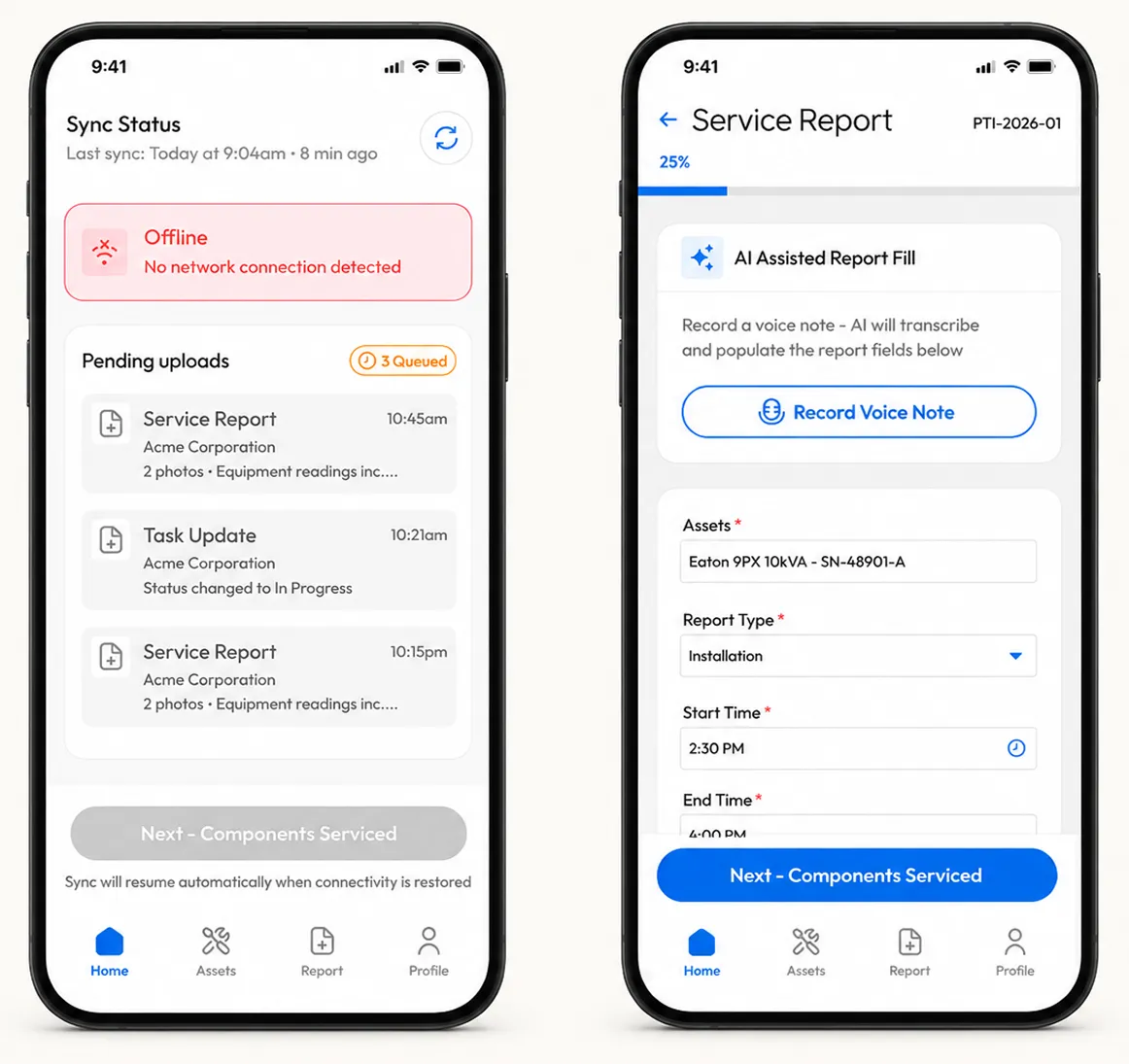
Rather than bolting on a “no connection” error state, every screen that writes data — job status, service reports, photos — was designed to work exactly the same with no signal at all. The interface just tells the technician the truth about what state it’s in.
-
Step 1
Work continues
Reports, photos, and status updates are captured the moment they happen — signal or not.
-
Step 2
Everything queues locally
Pending uploads are visible and counted, so nothing feels lost or uncertain.
-
Step 3
Sync resumes automatically
The moment connectivity returns, the queue clears itself — no manual retry, no re-entry.
-
Step 4
Nothing is repeated
The technician moves on to the next job without a second thought about what did or didn’t send.
Implementation
A report you can finish before you’re back in the truck.
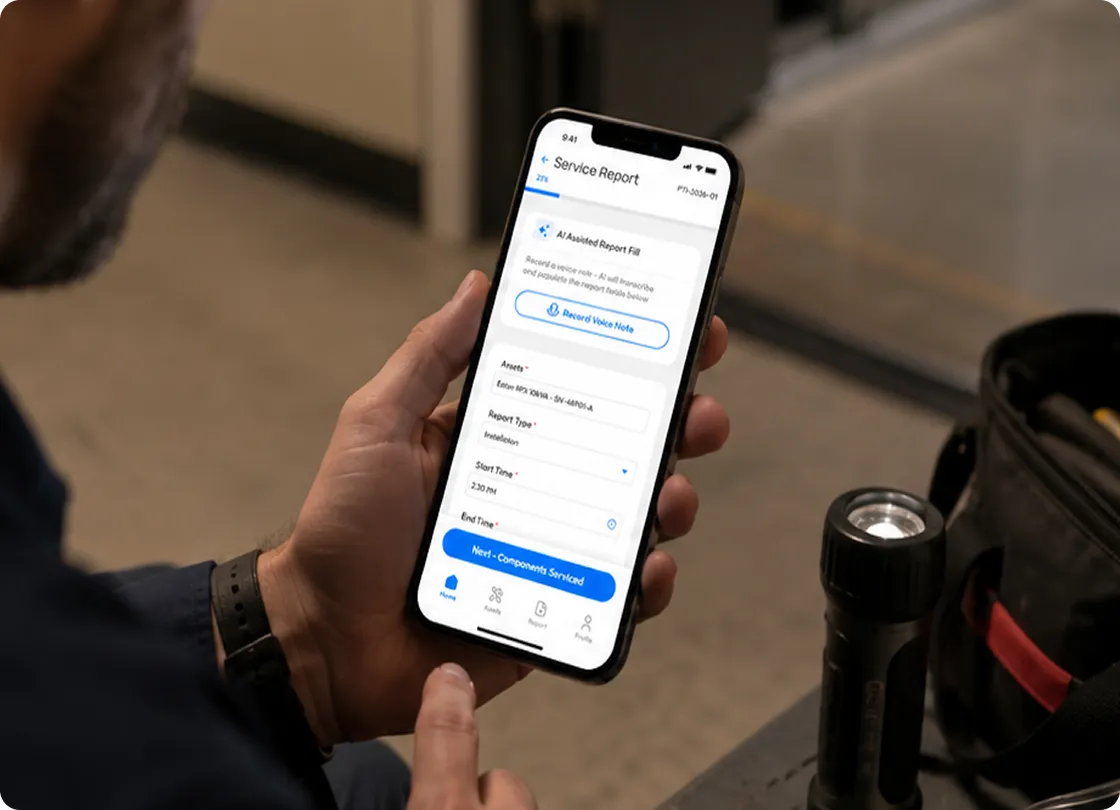
The old process turned every job into two jobs: the actual work, then an evening of paperwork reconstructed from memory. The new service report is built to be finished on-site, in minutes, without asking a technician to type out a paragraph one-handed.
A technician taps the asset they just worked on — searchable by name or scanned barcode — then records a short voice note describing what they did. That note is transcribed and used to populate the report’s fields automatically, including a structured “work performed” summary the technician reviews and can edit before submitting.
The transcription runs on our own private AI — the voice note never leaves for a third-party service, which matters when a technician is describing work inside a hospital or data center.
-
01 — Find the Asset
Asset Search
Searchable by name or barcode scan — the technician finds the specific unit they worked on before writing a single character.
-
02 — Voice Capture
Say What You Did
A short voice note replaces a typed paragraph — recorded on-site, the moment the work is finished.
-
03 — AI Fill
Structured Automatically
The voice note is transcribed and used to populate report fields, including a structured “work performed” summary.
-
04 — Review
Confirm and Submit
The technician reviews the auto-filled report, edits any detail, and submits — before walking back to the truck.
The outcomes
Work captured where it happens, the moment it happens.
-

Reports done on-site
Service reports are written and submitted at the moment the job ends — not reconstructed from memory the following morning. The work is documented before the technician walks back to the truck.
-

A field-first interface
Minimum 48px touch targets, high-contrast status indicators, and a layout designed for one hand, with gloves, in direct sunlight or a dim mechanical room. The UI survives contact with the field.
-

No data lost to signal gaps
The offline-first architecture means no reading, photo, or job status update is ever lost to a dropped connection. Everything queues locally and syncs the moment signal returns — automatically, without retry.
-

Voice-to-report in under three minutes
A technician records a short voice note on-site. It is transcribed, used to populate the report fields, and ready to review before they leave the job. What used to take 20 minutes at a desk now takes under three on-site.
-

Live dispatch visibility
The office has a real-time view of every active job — who is on-site, what has been completed, what is still outstanding, and whether a hardware delivery is holding anything up. No phone call required.
-

Asset history, built automatically
Every serviced asset accumulates a structured record: readings taken, parts replaced, findings flagged, technician notes. All linked to the site and customer automatically — no re-entry, no lost paperwork.
The most important thing the app changed wasn’t the paperwork — it was the gap between what happened on-site and what the office knew about it. That gap is gone.